Why tutors record online lessons
A recording keeps everything that happened in a lesson: every correction, every explanation, every moment of progress. Tutors record lessons to write better notes, to let students review difficult parts, to check their own teaching and to keep an accurate record over time.
This guide explains the main ways to record an online lesson on Zoom, Google Meet and Microsoft Teams, how to record in the browser on any platform, how to get good audio and what to do with the recording afterwards. Menus and features in video tools change often, so check each tool's own help pages for the current steps on your plan.
The three main ways to record
Use the video tool's built-in recording
Zoom, Google Meet and Microsoft Teams all offer recording on many plans. It is simple and records the meeting as the platform sees it. Availability depends on your account type and settings.
Use a screen recorder on your computer
Built-in screen recorders on Windows and macOS, or dedicated screen recording apps, capture whatever is on your screen with sound. This works on any platform, including tutoring marketplaces with their own classroom.
Record in the browser
Browser-based recorders capture a tab and your microphone without installing anything. This is often the easiest option when you teach on a marketplace's built-in classroom.
Recording a lesson on Zoom
On Zoom, the host can usually start recording from the Record button in the meeting controls. Depending on your plan, you can record to your computer or to Zoom's cloud. Local recordings are saved as video and audio files when the meeting ends; cloud recordings appear in your Zoom account.
Before the first lesson, check Zoom's settings for recording options such as recording a separate audio file for each participant. Separate audio tracks can make it easier to review what each person said.
Recording a lesson on Google Meet
On Google Meet, recording is available on some Google Workspace plans. When it is available, the organizer can start recording from the activities or tools menu. Recordings are saved to the organizer's Google Drive.
If recording is not available on your account, use a screen recorder or a browser recorder instead.
Recording a lesson on Microsoft Teams
On Microsoft Teams, meetings can be recorded from the More actions menu when your organization's settings allow it. Recordings are usually saved to OneDrive or SharePoint, depending on the meeting type.
Personal Teams accounts and work accounts can differ, so check what your account offers before a lesson.
Recording on tutoring marketplaces and other platforms
Many marketplaces have their own lesson rooms. Check each platform's rules for tutors before recording; some have specific policies about recording lessons.
Where recording is allowed, a screen recorder or a browser-based recorder that captures the tab and your microphone works on almost any platform, because it records what you see and hear rather than relying on the platform's own features.
Getting good audio
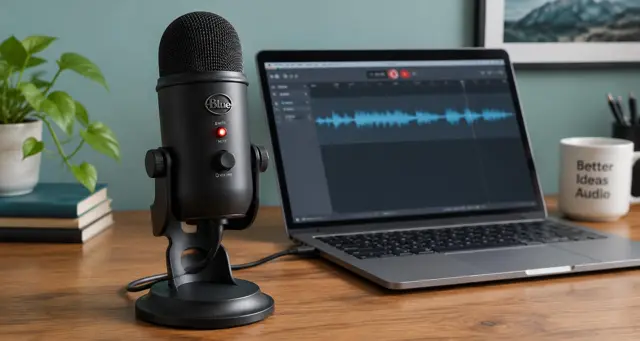
For lesson notes and review, audio matters more than video. Clear audio makes corrections easy to hear and notes easy to write.
- Use a headset or external microphone. Laptop microphones pick up room noise and echo.
- Choose a quiet room. Soft furnishings reduce echo. Close windows and doors.
- Ask the student to use headphones. It prevents echo and makes both voices clearer.
- Test once before the first lesson. Record one minute and play it back.
- Keep your connection stable. A wired connection or a strong Wi-Fi signal prevents gaps in the audio.
What to do with the recording
Write the lesson notes
Skim the recording for corrections and key moments, then write the student's notes. The complete guide to lesson notes for online tutors explains what to include.
Share a short clip
A two-minute clip of a difficult explanation is often more useful to the student than the full recording.
Review your own teaching
Watch ten minutes of a lesson once a month. Notice how much you speak compared with the student and how you explain corrections.
Store it carefully
Keep recordings somewhere private, name them clearly with the date and a student code, and delete them when you no longer need them.
Recording and taking notes at the same time
The hardest part of recording is not the recording itself but finding time to review it. Watching a full hour to write a five-minute note rarely happens on a busy teaching day.
Jotmonk records the lesson in the browser on any platform, keeps the tutor's and the student's voices apart and writes the lesson notes for you to review and send, so you can keep teaching instead of rewatching.
Common mistakes when recording lessons
- Forgetting to start. Make starting the recording part of your opening routine, like checking audio.
- Recording but never using it. Decide in advance what you will do with each recording.
- Poor audio. A cheap headset improves recordings more than any software setting.
- Keeping everything forever. Set a simple rule for how long you keep recordings.
Questions tutors ask about recording lessons
Do I need to record video, or is audio enough?
For notes and review, audio is usually enough and the files are much smaller. Record video when the screen matters, such as for coding or music.
How much storage do recordings use?
Video recordings use far more space than audio. An hour of video can take hundreds of megabytes; audio is a small fraction of that.
Can I record on a phone or tablet?
Many video tools allow recording on mobile on some plans, but options are more limited. A computer gives the most control.